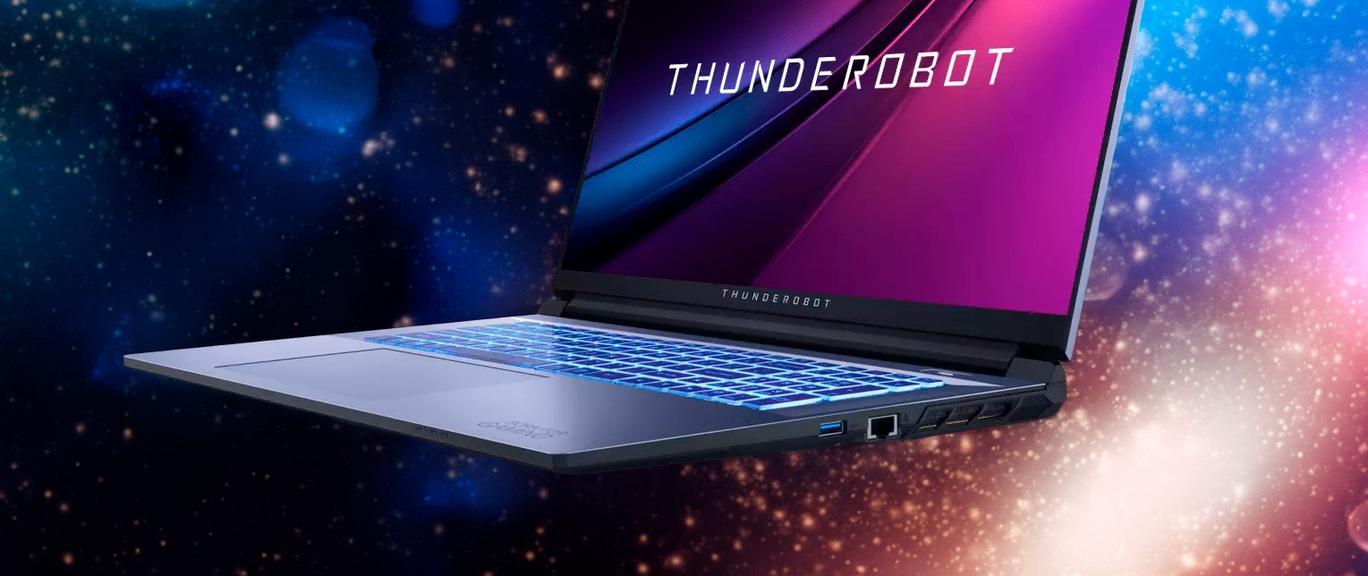

A little over a year ago, we reviewed the budget-oriented entry-level gaming laptop Thunderobot 911S Core D featuring a 15.6-inch display, an Intel Core i5 processor, and a discrete Nvidia GeForce RTX 3050 Laptop graphics card. Today, Haier (China) offers a similar model, the Thunderobot 911 Plus SE, equipped with a 17.3-inch screen; naturally, this makes the new device noticeably more expensive, and judging solely by specifications, it differs only in the display panel (and consequently larger dimensions and weight) and a more modern wireless adapter supporting Wi-Fi 6 and Bluetooth 5.2. Whether there will be any difference (and what kind) in our tests, we will see below.
Configuration and package contents
The following configuration is being tested:
| Thunderobot 911 Plus SE | ||
|---|---|---|
| Processor | Intel Core i5-12450H (4+4 cores / 12 threads, up to 3.3/4.4 GHz, 35—95 W) | |
| RAM | 16 (2×8) GB DDR4-3200 (2 × Crucial CT8G4SFS832A-M8FE) both SO-DIMM slots are occupied | |
| Graphics subsystem | discrete NVIDIA GeForce RTX 3050 Laptop (4 GB GDDR6, up to 75 W), integrated Intel UHD Graphics | |
| Screen | 17.3 inches, 1920×1080, IPS (BOE NV173FHM-NX4), 144 Hz | |
| Audio subsystem | Realtek ALC256, 2 speakers | |
| Storage | SSD 512 GB YMTC PC300-512GB-B, M.2 2280, NVMe, PCIe 4.0 x 4 there is space for a 2.5" SATA 3.0 SSD/HDD (7 mm) | |
| Card reader | none | |
| Network interfaces | Wired network | Realtek PCIe GbE 10/100/1000 Mbps |
| Wireless network Wi-Fi | Wi-Fi 6 (Intel AX201NGW IEEE 802.11a/b/g/n/ac/ax, 2.4 and 5.0 GHz) | |
| Bluetooth | Bluetooth 5.2 | |
| Interfaces and ports | USB | 1 × USB3.2 Gen2 Type-C (no Thunderbolt, Power Delivery, or video output support) 1 × USB3.1 Gen2 Type-A 1 × USB3.1 Gen1 Type-A 1 × USB2.0 Type-A |
| RJ-45 | yes | |
| Video outputs | 1 × HDMI 2.0 1 × DisplayPort 1.4 (mini) | |
| Audio jacks | 2 × mini-jack | |
| Input devices | Keyboard | with numeric keypad and backlight |
| Touchpad | clickpad | |
| IP telephony | Webcam | 720p@30fps |
| Microphone | yes (two) | |
| Fingerprint scanner | none | |
| Battery | 41 Wh, lithium-polymer | |
| Dimensions | 397×263×29.3 mm (including feet: up to 33.3 mm) | |
| Weight without power supply | 2.5 kg | |
| Power adapter | 150 W (20 V, 7.5 A), weight 0.47 kg (with cables) | |
| Operating system | Windows 11 Professional (22H2) | |
| Estimated price | 82 thousand rubles | |
There are several errors in the specifications on the official website page indicated in the table – for example, it claims there is no USB 2.0 port (even though there is one) and that an SDHC/SDXC card reader is present (which is absent), the color is listed as silver, but it is actually gray with black, the processor has 8 cores instead of 12, the battery is not "53.35 V·h" (as stated in the original), but 41 Wh, and this list is not exhaustive. The printed manual provides more accurate information, although the battery capacity is listed incorrectly; we hope that all errors will be corrected soon.
The product is packaged in two cardboard boxes (one inside the other for better protection), with a carrying handle only on the inner box.


Included in the package, besides the laptop itself, are a power supply unit with a detachable input cable (length 0.9 meters) and a hardwired output cable (1.7 m, equipped with a Velcro strap), as well as a cleaning cloth for surfaces, a logo sticker, and printed materials in Russian.

Appearance and ergonomics
The chassis design is rather understated for a gaming laptop: gray exterior surfaces and elements, a black bottom and rear edge, straight edges, and minimal decorative details. The aluminum alloy lid is slightly convex, with its barely noticeable profile highlighted by two thin curved lines that light up blue when the power is on. The logo badge on the lid features the same color illumination.

The other panels are plastic; all three have a matte texture with a hint of slight roughness, and the corners are gently rounded.
The build turns out to be quite rigid: the panels flex only slightly even under strong pressure, though the torsional rigidity of the display lid is rather low, which is fairly typical for this screen size.
Our measurements showed a body thickness quite typical for gaming laptops with a 17-inch screen – 24.1/26.4 mm at the front and 29.3/33.3 mm at the back (without feet / with feet). The 15-inch Thunderobot 911S Core D model is nowhere thicker than 27.1 mm (up to 30.5 mm with feet), which amounts to a difference of 2–3 millimeters, something not very noticeable.
The black plastic bezel around the screen is moderately wide: 6.7 mm on the sides, 11.2 mm at the top (housing a webcam with an indicator LED, but no privacy shutter, along with microphones), and about 22 mm at the bottom down to the hinge bend.

On the bottom panel, besides four elongated rubber feet, closer to the rear edge there is a large perforated area through which air is drawn in to cool the components; therefore, placing the laptop on soft surfaces should be avoided.

Vents on the left and right sides of the rear end, as well as on the lateral sides, allow the cooling system to exhaust hot air. Noticeable heating of the lower part of the screen does not occur as a result.
The stereo speaker grilles are located on the left and right beneath the chassis, closer to the front edge. When listening to music, watching movies, and playing games, the sound is standard by laptop measures; the volume headroom is not very large, but adequate for personal use.

The display lid opens up to an angle of 130–135 degrees and holds its position securely anywhere starting from about 30 degrees (when closed, holding is slightly weaker: no retaining magnets are provided).

The hinge resistance is initially moderate, but beyond 25–30 degrees it becomes substantial, making it impossible to open the lid with one hand without holding down the base. The edge can be gripped with a finger anywhere, although a subtle notch is provided in the middle of the front edge for this purpose.

Interface connectors are located on three sides.
On the rear edge, there is a power jack, HDMI (full-size), DisplayPort (mini), and USB3 Gen2 Type-C ports (without Power Delivery or video output support).

On the left are USB3.2 Gen1 Type-A and USB2.0 Type-A ports, as well as separate “mini-jacks” for microphone and headphones. Closer to the rear is a Kensington lock slot.

The right side hosts a USB3.2 Gen2 Type-A port and a full-size RJ-45 jack.

On the front edge, there are three indicators: the left one indicates external power connection, the middle one shows battery status, and the right one displays storage drive activity.

Regarding USB, our opinion is that while three Type-A ports are quite sufficient, a single Type-C port is not quite enough, and its rear placement is not always convenient, so having another one on the left or right would be desirable. Thunderbolt support would also be welcome – after all, the laptop under consideration cannot be considered entirely budget-level. And it would be better to move the RJ-45 port to the rear edge.
There is neither a card reader nor a fingerprint scanner.
The keyboard is membrane-type with island-style keys and a full numeric keypad. The margins along the edges are noticeable, at 34 mm each.

Most keys have a slightly reduced size compared to standard laptop keys at 14.8×14.8 mm, the function keys are even smaller (13.3×9.8 mm), the left Shift is wider than the right: 35 and 24 mm respectively, and the Enter key is fairly large – 33×14.8 mm. All four arrow keys are normal-sized. The gaps between rows and keys within a row are 3.5 mm.
The four-row numeric keypad features keys that are slightly narrower than the rest – 12.6 mm.
Typing is quite comfortable, with quiet sounds, although the actuation force is slightly high, but you quickly get used to it. The full key travel is about 1.5–1.6 mm.

There is three-color backlighting, toggling of which and selection of one of four brightness levels is done using a combination of Fn and the numeric keypad keys that have the corresponding symbols. Both the symbols (including Cyrillic) and the edges of the keys are backlit.


To select colors and set backlight modes, you can use the proprietary utility (more on this below).
The Power button is located behind the keyboard, closer to the right lid hinge, and features a built-in white indicator. It is mounted flush with the surface, practically eliminating accidental presses, though it is somewhat difficult to see in a dimly lit room when the laptop is turned off.

As mentioned above, the webcam is located above the screen. Its resolution is on par with budget laptops – 720p@30 fps. There is no shutter; only a key combination for quick disabling is provided.

The touchpad is large: 151×91 mm, and its surface is slightly recessed. There are no dedicated buttons, but its front left and right edges function well as the corresponding mouse buttons. We had no particular complaints during operation, but if needed, it can be disabled and re-enabled using a key combination.

Software
The laptop comes with the Windows 11 Pro (22H2) operating system. It is worth adding that in June, the company plans to release a similar model without an operating system. It will be called 911 Plus SD. Additionally, there is the “MyOffice Standard” software suite (home version), Yandex browser, and the proprietary Control Center 3.0 utility, version 3.97, which we will examine in more detail.
Its main window contains four sections:

Power Modes allows selecting one of four operating profiles (modes) related to performance and power consumption; the purpose of each is clear from its name, and hovering the cursor displays explanations:

Additional settings are available only for the power-saving profile, where you can allow changing the screen refresh rate – theoretically, the lower it is, the more efficiently energy is consumed, but it is difficult to say whether this effect will be tangible or even noticeable on this specific laptop.

LED Keyboard controls the keyboard backlight: it allows choosing the color (though no effects are provided) and brightness (four levels and off), as well as enabling auto-off after an interval set up to 1 hour 59 minutes 59 seconds. These settings do not affect the backlight of the decorative elements on the outer lid with the screen, and it cannot be turned off – we did not find such an option in the current version of the utility.

Flexikey is for creating keyboard and mouse macros, which can be useful in games.

Fan Speed Control lets you select the fan operating mode: automatic (with the option to set a minimum value for the CPU cooler), constant maximum speed for both fans (4800–4900 rpm, with corresponding noise levels), and manual configuration of profiles (as curves) for each of them. It also displays the current temperatures for the CPU and GPU, as well as their fan speeds in absolute values and relative terms (percentage of maximum).


In versions of the Control Center utility for other Thunderobot laptops, we have seen other features, including GPU and video memory overclocking, battery charge threshold management, as well as forcing the use of only the integrated graphics adapter for better power savings and increased battery life. In this case, none of the above is present, but we won’t regret this too much: tests of various laptops have shown that such settings far from always yield a noticeable practical effect.
Screen
The laptop uses a 17.3-inch IPS panel with a resolution of 1920×1080 pixels (edid-decode report).
The outer surface of the panel is black, rigid, and semi-matte (reflectivity is clearly pronounced). There are no special anti-glare coatings or filters, nor is there an air gap. When powered from the mains or on battery and with manual brightness control (there is no automatic adjustment via an ambient light sensor), its maximum brightness was 280 cd/m² (in the center of the screen on a white background). The maximum brightness is not very high. However, avoiding direct sunlight, even this level allows using the laptop outdoors to some extent even on a sunny summer day.
To evaluate outdoor screen readability, we use the following criteria obtained from testing screens in real-world conditions:
| Maximum brightness, cd/m² | Conditions | Readability assessment |
|---|---|---|
| Matte, semi-matte, and glossy screens without anti-glare coating | ||
| 150 | Direct sunlight (more than 20,000 lx) | Unreadable |
| Light shade (approx. 10,000 lx) | Barely readable | |
| Light shade and light overcast (no more than 7,500 lx) | Uncomfortable to work | |
| 300 | Direct sunlight (more than 20,000 lx) | Barely readable |
| Light shade (approx. 10,000 lx) | Uncomfortable to work | |
| Light shade and light overcast (no more than 7,500 lx) | Comfortable to work | |
| 450 | Direct sunlight (more than 20,000 lx) | Uncomfortable to work |
| Light shade (approx. 10,000 lx) | Comfortable to work | |
| Light shade and light overcast (no more than 7,500 lx) | Comfortable to work |
These criteria are quite tentative and may be revised as more data is accumulated. Note that some improvement in readability may occur if the panel possesses some transflective properties (part of the light is reflected from the substrate, and the image is visible in the light even with the backlight off). Also, glossy panels, even in direct sunlight, can sometimes be turned so that they reflect something fairly dark and uniform (on a clear day, for example, the sky), which improves readability, whereas matte panels must be shielded from light to improve readability. Indoors under bright artificial light (around 500 lx), it is more or less comfortable to work even with a maximum screen brightness of 50 cd/m² and lower, meaning that under these conditions maximum brightness is not a significant factor.
Returning to the screen of the tested laptop: if the brightness setting is at 0%, the brightness drops to 7 cd/m². In total darkness, its screen brightness can be reduced to a comfortable level.
At any brightness level, there is no significant backlight modulation, so there is no screen flickering either (no PWM). As proof, here are graphs of brightness (vertical axis) versus time (horizontal axis) at various brightness settings:
This laptop uses an IPS-type panel. Microphotographs demonstrate a subpixel structure typical of IPS (the black dots are dust on the camera sensor):

Focusing on the screen surface revealed randomly arranged surface microdefects responsible for the matte properties:

The grain of these defects is several times smaller than the subpixel dimensions (the scale of these two photos is approximately the same), so focusing on the microdefects and the “hopping” of focus across subpixels when changing the viewing angle are weak, which also prevents any “sparkle” effect.
We measured brightness at 25 points on the screen, located at steps of 1/6 of the screen width and height (the screen boundaries are not included). The contrast ratio was calculated as the ratio of field brightness at the measured points:
| Min, % | Max, % | ||
|---|---|---|---|
| Parameter | Average | Deviation from average | |
| Black field brightness | 0.29 cd/m² | −11 | 10 |
| White field brightness | 267 cd/m² | −11 | 8.6 |
| Contrast ratio | 850:1 | −17 | 6.1 |
Moving away from the edges, the uniformity of the white field is good, while that of the black field and consequently the contrast ratio is worse. The contrast ratio by modern standards for this type of panel is slightly below typical. Visually, it is noticeable that the black field is lightened in spots, mostly closer to the edge. However, non-uniformity of black backlighting is visible only in very dark scenes and in almost total darkness, so it should not be considered a significant flaw. Note that lid rigidity is low; it slightly flexes at the slightest applied force, and this flex significantly alters the pattern of black field bleed.
The screen has good viewing angles without a significant drop in brightness or color shift even at large deviations from the perpendicular to the screen, and without tone inversion (though IPS panels in monitors are usually better in this regard). However, the black field brightens substantially when viewed diagonally and takes on a red-purple tint.
The response time for the black-white-black transition is 15 ms (8 ms on + 7 ms off), while the transition between gray halftones in total (from shade to shade and back) takes an average of 20 ms. The panel is fast, but there is no explicit overdrive. From our point of view, the panel speed is sufficient for dynamic gaming.
Here is the dependence of brightness on time when alternating white and black frames at a refresh rate of 144 Hz :
It can be seen that at 144 Hz, the maximum brightness of a white frame reaches 90% of the white level, and the minimum brightness of a black frame is below 10% of the white level. The resulting amplitude span is slightly over 80% of the white brightness. That is, according to this formal criterion, the panel speed is sufficient for full image output at a refresh rate of 144 Hz.
To give a clear idea of what such panel speed means in practice, here are photos taken with a moving camera. Such shots show what a person sees when tracking an object moving across the screen with their eyes. A description of the test is provided here, and the test page itself is here. The recommended settings were used (movement speed of 960 pixels/s for 60 Hz and 1008 pixels/s for 144 Hz refresh rate), with an exposure time of 1/15 s.


Clarity at a refresh rate of 144 Hz is noticeably higher than at 60 Hz.
Let’s try to imagine what would happen in the case of a panel with instantaneous pixel switching. For it, at 60 Hz, an object with a movement speed of 960 pixels/s is blurred by 16 pixels, and at 144 Hz – by 7 pixels (at 1008 pixels/s). It blurs because the visual focus moves at the specified speed, while the object is displayed statically for 1/60 or 1/144 of a second. To illustrate this, let’s simulate blurring by 16 and 7 pixels:
It can be seen that the image clarity in the case of this laptop is noticeably lower compared to an ideal panel.
We measured the total display lag from the video buffer page flip to the start of image display on the screen (as a reminder, it depends on the specifics of the Windows OS and the graphics card, not just the display). At a refresh rate of 144 Hz, the delay is 4 ms. This is a very low lag; it is completely imperceptible when working on a PC, and even in very fast-paced games, it will not lead to a drop in performance.
In the display settings, several refresh rates are available to choose from, but in practice, with fixed frequencies, the panel operates in 60 and 144 Hz modes. The output is provided with a color depth of 8 bits per color channel. Judging by the data in the graphics adapter control panel, the screen supports Adaptive Sync in the range from 48 to 144 Hz:
Next, we measured the brightness of 256 gray shades (from 0, 0, 0 to 255, 255, 255) at default settings. The chart below shows the increase (not the absolute value!) in brightness between adjacent halftones:
The increase in brightness gain across the grayscale is mostly uniform, with each subsequent shade being brighter than the previous one. In the darkest area, all shades are well distinguishable both through hardware measurement and visually, which is very good for a gaming laptop:
Approximation of the resulting gamma curve yielded an exponent of 2.16, which is only slightly below the standard value of 2.2, so the image has natural lightness. At the same time, the actual gamma curve deviates little from the approximating power function:
The color gamut is noticeably narrower than sRGB:
Therefore, visually, colors on this screen are somewhat pale. Below is the spectrum for the white field (white line), superimposed on the spectra of the red, green, and blue fields (lines of the corresponding colors):
Such a spectrum with a relatively narrow blue peak and broad humps of green and red colors is typical of screens that use white LED backlighting with a blue emitter and a yellow phosphor. The spectra show that the panel's color filters significantly cross-mix the components, which narrows the color gamut.
The balance of shades on the grayscale is good, as the color temperature is quite close to the standard 6500 K, and the deviation from the blackbody spectrum (ΔE) is below 10, which is considered an acceptable metric for a consumer device. At the same time, the color temperature and ΔE vary little from shade to shade — this positively affects the visual assessment of the color balance. (The darkest areas of the grayscale can be disregarded, as color balance is not of great significance there, and the measurement error for color characteristics at low brightness is high.)
Let’s summarize. The screen of this laptop has a sufficiently high maximum brightness (280 cd/m²) to allow the device to be used outdoors on a bright day while shielded from direct sunlight. In total darkness, brightness can be lowered to a comfortable level (down to 7 cd/m²). Among the screen’s advantages are a high refresh rate (144 Hz), low output latency (4 ms), a fairly fast matrix, and the absence of flicker. The disadvantages include low black stability when viewing off-axis from perpendicular to the screen plane, as well as somewhat pale colors. Overall, while the screen quality is not exceptionally high, in terms of its characteristics, the laptop can reasonably be classified as gaming-oriented.
Battery life
The capacity indicated on the battery is 41 Wh:

Utilities report slightly less:
Let’s evaluate battery life using the iXBT Battery Benchmark v1.0 script, which involves setting the screen brightness to 100 cd/m² (in this case, this corresponds to approximately 34% of the adjustment scale in the corresponding Windows snap-in), so that laptops with relatively dim screens do not gain an advantage.
| Workload scenario | Battery life discharge from 100% to 1% |
|---|---|
| “Performance” profile, keyboard backlight off | |
| Text processing | 5 h 17 min |
| Video playback | 3 h 15 min |
| “Power Saver” profile, keyboard backlight off, dynamic refresh rate allowed | |
| Text processing | 5 h 23 min |
| Video playback | 3 h 44 min |
| “Performance” profile, keyboard backlight set to maximum | |
| Text processing | 4 h 54 min |
| Video playback | 3 h 02 min |
The impact of both profiles and the keyboard backlight on battery life during text work is not very large: single-digit percentages, and only slightly more during video playback.
The tested laptop performed quite well compared to its 15-inch counterpart, the 911S Core D, whose battery life with the same battery was nearly an hour shorter. For clarity, we present the comparison in charts, but note: the other three comparison participants have noticeably larger battery capacities – finding similarly configured and not entirely ancient models with batteries around 40 Wh proved difficult:
| Model | Thunderobot 911 Plus SE (41 Wh) | Thunderobot 911S Core D (41 Wh) | Thunderobot Range 17 Pro (53.35 Wh) | Thunderobot 911 MT Pro D (53.4 Wh) | Thunderobot 911 Plus G2 Max (53.4 Wh) |
|---|---|---|---|---|---|
| Text processing | 317 | 259 | 301 | 264 | 326 |
| Video playback | 195 | 145 | 216 | 213 | 255 |
Now let’s test charging with the bundled power adapter after auto shutdown at the 1% level; the table shows readings from the corresponding Windows snap-in (the OS was booted on the laptop):
| Charge level | 10% | 20% | 30% | 40% | 50% | 60% | 70% | 80% | 90% | 95% | 100% | ||||
|---|---|---|---|---|---|---|---|---|---|---|---|---|---|---|---|
| Time, h:mm | 0:06 | 0:12 | 0:19 | 0:29 | 0:42 | 0:55 | 1:07 | 1:21 | 1:36 | 1:53 | 2:34 | ||||
According to these readings, for a battery of this capacity, the process proceeds at a normal pace: 80% was reached in 1 hour 21 minutes, 90% – in just over an hour and a half, 95% – in just under two hours. As is usually the case, the last five percent took considerable time – forty minutes, so a full charge took two and a half hours. We saw the same with the 15-inch counterpart.
The built-in BMS (Battery Management System) allows recharging at any remaining energy level.
Design
The laptop is equipped with the not-so-new, yet far from archaic Intel Core i5-12450H processor (code-named Alder Lake, produced since early 2022); out of its eight cores, four are Performance cores (P-cores), which can execute two threads at clock speeds up to 4.4 GHz, and another four are single-threaded energy-efficient Efficient cores (E-cores, up to 3.3 GHz).
According to specifications, the TDP of this processor can range between 35–45 W in standard mode, and can reach up to 95 W in Turbo Boost, but in a specific laptop model the limits may differ, which is what we see in this case:
The discrete NVIDIA GeForce RTX 3050 Laptop graphics card belongs to the 2021 generation; this GPU can run at frequencies up to 1.5 GHz with power consumption up to 75 W. There is also an integrated Intel UHD Graphics adapter.

The RAM consists of two 8 GB Crucial CT8G4SFS832A-M8FE DDR4-3200 modules in SO-DIMM slots.

A 512 GB SSD designated YMTC PC300-512GB-B with a PCIe 4.0 x4 interface is installed.
In the corresponding test, it showed decent results:
Let’s compare with the results shown by other PCIe 4.0 x4 drives – the same YMTC PC300-512GB-B in the earlier Thunderobot 911S Core D model and the SSSTC CL4-8D512 in the more expensive Thunderobot 911 Plus G2 Max:


That is, the storage performance across all three laptops is at roughly the same level.
To remove the bottom cover, you need to remove 14 screws, one of which is covered by a sticker, but the company assured us that if necessary (for example, to add a second SSD), it can be removed without voiding the warranty.

Most of the space inside the laptop is occupied by the motherboard with coolers, the rest is reserved for the battery and a bay for installing an additional 2.5-inch SATA drive up to 7 mm thick, with speakers located on the sides.

However, connecting a SATA SSD requires an appropriate connector, as well as mounting hardware. The Thunderobot 911S Core D model we tested previously had them:
In the laptop under test, however, there is nothing of the sort, even though the possibility of installing a second drive is mentioned, and the header labeled "HDD1" for connecting the ribbon cable is present on the motherboard:
We contacted the manufacturer, and the response was as follows: this is by no means a policy (in the sense of "drive installation only via authorized service centers"), everything required for self-installation should be included. Let us hope that we were just the "lucky" ones who received an incomplete laptop, and customers will get everything needed.
The slots for SO-DIMM modules and the drive in the M.2 slot are clearly visible (and easily accessible) on the board.


Another M.2 slot houses the wireless module.

The cooling system layout is quite typical: two heatsinks with fans are spaced as far apart as possible toward the corners of the chassis, connected by heat pipes to the heat spreaders on the CPU and GPU. As mentioned earlier, air is drawn in through the slots on the bottom and exhausted out the back and sides (rear).

Operation under load and thermal performance
The behavior of both the CPU and the GPU under substantial loads is of considerable importance, as is the operation of the cooling system – how well it handles its task. Therefore, we will run a series of tests.
To evaluate how the operating parameters of the system components (temperatures, clock speeds, etc.) change under different load scenarios, we provide a table (separated by a slash are the peak/steady-state values, with red indicating overheating). The fans automatically adjust their speeds as needed, and their rotational speeds are monitored using the Control Center utility.
| Load scenario | CPU frequencies, GHz | CPU temp, °C | CPU power, W | GPU frequency, GHz | GPU temp, °C | GPU power, W | CPU/GPU fans, krpm |
|---|---|---|---|---|---|---|---|
| Idle | 36-37 | up to 4-4.5 | 35-36 | up to 3-3.2 | 0-2 / 0 | ||
| "Performance" profile | |||||||
| Maximum CPU load | P: 4.1/2.3 E: 3.5/3.3 | 85-90 | 65-70 | 4.8 / 2.8 | |||
| Maximum GPU load | 59-67 | 17-19 | around 1.6 | up to 67 | 60 | 4.0 / 4.3 | |
| Maximum CPU and GPU load | P: 3.2/2.0-2.1 E: 3.3/3.3 | up to 90-92 | 60/42-47 | around 1.6 | up to 78 | 60 | 4.9 / 4.3 |
| "Power saving" profile | |||||||
| Maximum CPU load | P: 2.8/1.6 E: 2.3/1.5 | 45-56 | 15 | 1.7 / 1.7 | |||
| Maximum GPU load | 54-63 | 6-7 | around 1.6 | up to 69 | 60 | 3.2 / 3.4 | |
| Maximum CPU and GPU load | P: 2.7/1.4-1.5 E: 2.3/1.5 | up to 60 | 30/15 | around 1.6 | up to 70 | 60 | 3.2 / 3.4 |
| "Standard" profile | |||||||
| Maximum CPU load | P: 4.1/3.4 E: 3.3/2.8 | 85/70-73 | 70-71/45 | 3.1 / 1.7 | |||
| Maximum CPU and GPU load | P: 4.1/3.4 E: 3.3/2.7 | 85/81-82 | 68/45 | around 1.6 | up to 74 | 60 | 4.0 / 4.2 |
| "Quiet" profile | |||||||
| Maximum CPU load | P: 2.7/1.6 E: 2.3/1.6 | 52/44-46 | 30/15 | 1.7 / 1.7 | |||
| Maximum CPU and GPU load | P: 2.6/1.5 E: 2.3/1.5 | up to 72 | 30/15 | around 1.6 | up to 82 | 60 | 2.0 / 2.2 |
Let us begin with the Performance mode.
When load is applied (using the powerMAX utility) to the CPU, no Turbo Boost mode is observed; the processor runs for an extended period with virtually constant power consumption of 65-70 W (which is noticeably higher than the 35-45 W limit specified for standard mode) and clock speeds of around 4.1 GHz for P-cores and 3.3 GHz for E-cores, with temperatures remaining within 90 °C and no throttling present. The fans begin to spin up almost immediately, quickly reaching the speeds indicated in the table: close to maximum for the CPU, and about half that for the GPU.

After the load is removed, the processor cools down quickly, and the fans gradually slow down: the GPU fan stops completely after a minute, while the CPU fan continues spinning at low RPM for another three and a half minutes.
Applying a load to the NVIDIA graphics core causes its temperature to rise slowly, with the fans gradually picking up speed to 80% of maximum for the GPU and slightly lower for the CPU; GPU temperatures stabilize at 66-67 °C, clock speeds fluctuate slightly around 1.6 GHz (just above the rated maximum specification), and GPU power consumption stays around 60 W, which is below the claimed 75 W limit.

When load is applied to both processors, the CPU P-cores boost to 4.1 GHz for a few seconds, but then their frequency drops to 3.7-3.8 GHz; the E-cores drop to 3.3 and 2.9-3.0 GHz, respectively. The CPU temperature does not exceed 90-92 °C (throttling occasionally appears on one of the P-cores), with power consumption peaking at up to 69 watts and settling at around 55 watts in steady-state operation.
As in the previous test, the GPU operates at around 1.6 GHz and consumes 60 W, with temperatures not exceeding 73 °C.
The fans quickly ramp up – the CPU fan to maximum, the GPU fan slightly lower – and continue running at that level.

Thus, the cooling system copes well with its tasks: even in fairly heavy test modes, overheating with throttling is observed only occasionally.
Let’s see what happens in the power saving mode.
When load is applied only to the CPU in this case, Turbo Boost mode still appears, but for just a few seconds and with P-core frequencies around 2.8 GHz, E-cores – 2.3 GHz, followed by a drop to 1.6 and 1.5 GHz, respectively. Temperature is within 46 °C, power consumption is 15 W, the fans rotate slowly: at about a quarter of their maximum, and the noise is very low.

GPU load: its frequency is 1.6 GHz, power consumption is 60 W – exactly as it was in performance mode; accordingly, the fans spin faster (speed slightly over half of maximum), noise is higher, and temperature reaches 68–69 °C.

When load is applied to both processors, the CPU P-cores boost to 2.7 GHz for a few seconds, then their frequency drops to 1.4–1.5 GHz; E-cores – to 2.3 and 1.5 GHz, respectively. CPU temperature does not exceed 60 °C, with power consumption reaching up to 30 W at peak and 15 W in steady-state mode.
GPU behavior is stable: frequency of 1.6 GHz, power consumption of 60 W, and temperature not exceeding 70 °C.
The fans run at the same speeds as under load on the graphics card alone.

The comparison shows: switching between these profiles affects the central processor, but does not affect the discrete graphics adapter.
Let us also briefly describe behavior in the other two profiles.
Standard, CPU load:

As you can see, Turbo Boost here is pronounced and quite long-lasting, but the difference with the normal mode is minor (see the table above). The fans spin up to 55 (CPU) and 25 (GPU) percent of their maximum; overheating and throttling do not occur.
CPU and GPU load:

The CPU picture is roughly the same as in the previous case, but temperatures are slightly higher, and occasional throttling is observed on one of the P-cores. The GPU, as with other profiles, operates at a stable frequency and with stable power consumption. The speed of both fans is around 77% of maximum.
Quiet, CPU load:

Fan speeds are very low: around 27% and 25% of maximum, barely audible.
Load on both processors:

The fans spin slightly faster: at a third of maximum, so the noise is more noticeable, but only slightly. The difference from the power saving profile is minimal.
Drive temperature in our tests did not exceed 35–36 degrees (according to HWiNFO data).

Below are thermal images taken after prolonged operation of the laptop under maximum load on the CPU and GPU ("Performance" profile):


Under maximum load, typing on the keyboard is comfortable, as the palm rest area barely heats up. Keeping the laptop on your lap is slightly uncomfortable, as the heat on the bottom is still felt by your knees. The power supply heats up very strongly, so during prolonged high-performance work, make sure it is not covered by anything.
Noise level
We measure the noise level in a special soundproofed and semi-anechoic chamber. The sound meter microphone is positioned relative to the laptop to simulate the typical head position of a user: the screen is tilted back by 45 degrees, the microphone axis aligns with the normal coming from the center of the screen, the front end of the microphone is at a distance of 50 cm from the screen plane, and the microphone is aimed at the screen. The load is generated using powerMAX, the screen brightness is set to maximum, and the room temperature is maintained at 24 degrees, but the laptop is not intentionally blown with air, so the air temperature in its immediate vicinity may be higher. To evaluate actual consumption, we also provide (for some modes) power consumption from the mains. The battery is pre-charged to 100%. In the proprietary utility settings, the "Power Saving" or "Performance" profile is selected:
| Load scenario | Noise level, dBA | Subjective assessment | Power consumption from mains, W |
|---|---|---|---|
| "Power Saving" profile | |||
| Idle | 18.6 | Conditionally silent | 22 |
| "Performance" profile | |||
| Maximum load on CPU and GPU | 42.9 | Very loud | 143 (maximum 159) |
Whether this is a lot or a little: for the 15-inch analog Thunderobot 911S Core D, we recorded noise up to 48 dBA, and for the 17-inch gaming Maibenben X17A-R56035 – up to 43.2 dBA, meaning the laptop under test runs quieter than the former and at roughly the same level as the latter.
If the Thunderobot 911 Plus SE is not loaded at all, its cooling system does not always run in passive mode even with the "Power Saving" profile; however, the noise is very, very low, and, for example, in an office environment, the laptop will be completely inaudible. The nature of the noise even under heavy load is smooth and does not cause irritation. The spectrogram obtained for the "Performance" profile under maximum load is fairly flat, and in the frequency range where sounds are especially prone to causing irritation, there are no pronounced peaks (low-frequency peaks can be neglected):

For a subjective assessment of the noise level, let us use the following scale:
| Noise level, dBA | Subjective assessment |
|---|---|
| Below 20 | Conditionally silent |
| 20-25 | Very quiet |
| 25-30 | Quiet |
| 30-35 | Clearly audible |
| 35-40 | Noisy |
| 40-45 | Very noisy |
| 45-50 | Loud |
| Above 50 | Very loud |
Below 20 dBA, a computer is conditionally silent; from 20 to 25 dBA, a laptop can be called very quiet; from 25 to 30 dBA, noise from the cooling system will not stand out much against typical background sounds in an office with multiple coworkers and running computers; from 30 to 35 dBA, noise is clearly audible; from 35 to 40 dBA, noise exceeds the comfortable level for long-term work; from 40 to 45 dBA, the laptop runs very noisily and work requires, for example, masking with background music; from 45 to 50 dBA, the noise level is very uncomfortable, and from 50 dBA and above, the noise is so high that headphones are necessary. The scale is, of course, highly arbitrary and does not take into account the user's individual characteristics or the sound profile.
Gaming tests
Since the testing of the 15-inch counterpart of our subject, the game testing methodology has been updated, and not so many models with comparable configurations have been accumulated yet, so we will first compare it with the following laptops:
- Maibenben X17A-R56035 with an AMD Ryzen 5 6600H processor (6 cores/12 threads, 3.3/4.5 GHz, up to 45 W) and the same graphics card as our subject, NVIDIA GeForce RTX 3050 Laptop, 512 GB PCIe 4.0 ×4 NVMe SSD, 16 GB (2×8) DDR5-4800 RAM,
- OSiO CyberLine C160i with a more capable Intel Core i7-12650H processor (6+4 cores/16 threads, up to 2.3/4.7 GHz, up to 45/115 W) and an NVIDIA GeForce RTX 4060 Laptop graphics card (8 GB GDDR6), 512 GB PCIe 4.0 ×4 NVMe SSD, 16 GB (2×8) DDR5-4800 RAM,
- Asus Vivobook Pro 15 OLED with an Intel Core Ultra 7 155H processor (6+8+2 cores/22 threads, 0.7/4.8 GHz, 20-28/115 W) and an NVIDIA GeForce RTX 4050 Laptop graphics card (6 GB GDDR6), 1 TB PCIe 4.0 ×4 NVMe SSD, 16 GB (2×8) DDR5 RAM; this laptop is not positioned as a gaming device, and its processor is quite high-performing, yet its discrete graphics adapter is closer than most others we tested to the one in our review subject, which is essential for gaming.
The table shows average and minimum fps values at the standard resolution of 1920×1080 and maximum quality, with the “Performance” mode selected in the Control Center utility.
| avg. | min. | avg. | min. | avg. | min. | avg. | min. | |
|---|---|---|---|---|---|---|---|---|
| Game | Thunderobot 911 Plus SE NVIDIA GeForce RTX 3050 Laptop | Maibenben X17A NVIDIA GeForce RTX 3050 Laptop | OSiO CyberLine C160i NVIDIA GeForce RTX 4060 Laptop | Asus Vivobook Pro 15 OLED NVIDIA GeForce RTX 4050 Laptop | ||||
| Assassin’s Creed: Valhalla | 44 | 30 | 47 | 28 | 98 | 63 | did not launch | |
| Company of Heroes 3 | 77 | 48 | 76 | 54 | 149 | 76 | 67 | 42 |
| Cyberpunk 2077 | 37 | 26 | 38 | 27 | 70 | 48 | 54 | 42 |
| Cyberpunk 2077 with RT | 13 | 6 | 10 | 5 | 32 | 25 | 20 | 8 |
| Cyberpunk 2077 with RT and DLSS *) | — | — | — | — | 79 | 36 | 31 | 22 |
| F1 22 | 28 | 25 | 30 | 24 | 61 | 54 | 48 | 36 |
| Far Cry 6 | 61 | 54 | 65 | 51 | 108 | 88 | did not launch | |
| Immortals Fenyx Rising | 39 | 18 | 43 | 16 | 79 | 46 | 61 | 18 |
| Watch Dogs: Legion | 37 | 27 | 40 | 33 | 77 | 60 | 61 | 45 |
| Watch Dogs: Legion with RT | 17 | 11 | 14 | 11 | 44 | 36 | 35 | 26 |
| Watch Dogs: Legion with RT and DLSS | 24 | 18 | 22 | 19 | 60 | 46 | 62 | 34 |
*) Cyberpunk 2077 requires a GeForce RTX 40 series graphics card for DLSS
At a resolution of 1920×1080, which we consider standard, our “subject” exceeded the conditional comfort threshold of 60 fps average and 30 fps minimum in only two games. Very similar results were also shown by the Maibenben X17A laptop with the same graphics card. The Asus Vivobook Pro 15 OLED equipped with NVIDIA GeForce RTX 4050 performed slightly better. Meanwhile, the mid-range gaming laptop OSiO CyberLine C160i with RTX 4060 expectedly showed significantly better results—we included it as a benchmark rather than for direct comparison.
Let us proceed with the set of games used in the 2024 methodology for models with integrated graphics or low-end discrete GPUs, but a small caveat must be made: the new methodology requires testing with medium quality settings, whereas the models suitable for comparison were tested in these games at maximum quality:
- Thunderobot 911S Core D with the same CPU and GPU, memory, and storage,
- Thunderobot 911 MT Pro D—it has the same CPU, an NVIDIA GeForce RTX 3060 Laptop GPU (6 GB DDR6), 16 GB DDR4-3200, 512 GB PCIe 4.0 ×4 NVMe SSD,
- Thunderobot 911 X Wild Hunter G3 XD with Intel Core i5-13500H (4+8 cores/16 threads, up to 3.5/4.7 GHz, 35-45/95 W) and NVIDIA GeForce RTX 4050 Laptop (6 GB DDR6), 16 GB DDR4-3200, 512 GB PCIe 4.0 ×4 NVMe SSD.
The table shows the average and minimum fps values separated by a slash at the native resolution of 1920×1080 for all four models, as (and if) measured by the game's built-in benchmark. For the Thunderobot 911 Plus SE, we use the "Performance" profile.
| Game, maximum quality | Thunderobot 911 Plus SE (NVIDIA GeForce RTX 3050 Laptop, Intel Core i5-12450H) | Thunderobot 911S Core D (NVIDIA GeForce RTX 3050 Laptop, Intel Core i5-12450H) | Thunderobot 911 MT Pro D (NVIDIA GeForce RTX 3060 Laptop, Intel Core i5-12450H) | Thunderobot 911 X Wild Hunter G3 XD (NVIDIA GeForce RTX 4050 Laptop, Intel Core i5-13500H) |
|---|---|---|---|---|
| World of Tanks | 119/74 | 125/79 | 178/115 | 183/118 |
| World of Tanks (RT) | 81/52 | 85/54 | 122/83 | 119/79 |
| F1 2018 | 104/81 | 109/87 | 119/103 | 134/100 |
| Gears 5 | 61/47 | 68/51 | — | — |
| Total War Saga: Troy | 44/33 | 46/36 | 68/52 | 57/46 |
Our “subject” demonstrated results slightly worse than the similar Thunderobot 911S Core D, but with the specified settings, the conditional comfort threshold (60 fps average and 30 fps minimum) was overcome in three out of four games. Compared to the other two laptops equipped with more advanced graphics cards, both of these models fell significantly behind, which is entirely expected.
However, if on the laptop under test in "Total War Saga: Troy" the quality is lowered by one step ("High" instead of "Ultra"), the comfort threshold will be exceeded in this game as well, and with a solid margin: we get 83 average and 71 minimum.
Above, we saw that the operating mode of the discrete graphics card is virtually independent of the profile selected in Control Center, so it can be assumed that there will be no impact on games either. Let us verify this in those games where the minimum comfort threshold was exceeded:
| "Performance" profile | "Power Saving" profile | |
|---|---|---|
| Game, maximum quality | ||
| World of Tanks | 119/74 | 119/74 |
| World of Tanks (RT) | 81/52 | 80/52 |
| F1 2018 | 104/81 | 96/72 |
| Gears 5 | 61/47 | 61/46 |
| Company of Heroes 3 | 77/48 | 75/46 |
| Far Cry 6 | 61/54 | 58/48 |
Subjectively, in power saving mode, the laptop runs slightly quieter, while the results turn out either the same as with the "Performance" profile or slightly lower. The conclusion speaks for itself.
Application performance
Since any laptop positioned by the manufacturer as gaming is by no means always used exclusively for games, office tasks, and watching videos, we also tested the Thunderobot 911 Plus SE in our application suite.
For comparison, in addition to the reference desktop with an Intel Core i5-9600K processor, we took the models already mentioned above:
- Maibenben X17A-R56035 with an AMD Ryzen 5 6600H processor (6 cores/12 threads, 3.3/4.5 GHz, up to 45 W) and the same graphics card as our subject, NVIDIA GeForce RTX 3050 Laptop, 512 GB PCIe 4.0 ×4 NVMe SSD, 16 GB (2×8) DDR5-4800 RAM,
- Thunderobot 911 MT Pro D with the same processor as our review subject and a somewhat more advanced NVIDIA GeForce RTX 3060 Laptop graphics card, 512 GB PCIe 4.0 ×4 NVMe SSD, 16 GB (2×8) DDR4-3200 RAM,
- Thunderobot 911 X Wild Hunter G3 XD with a newer Intel Core i5-13500H CPU (12 cores/16 threads, up to 3.5/4.7 GHz, 35–45/95 W) and an NVIDIA GeForce RTX 4050 Laptop graphics card, 512 GB PCIe 4.0 ×4 NVMe SSD, 16 GB (2×8) DDR4-3200 RAM.
For the tested model, the “Performance” profile was selected in Control Center.
| Overall performance score, points | 100 | 196 | 206 | 159 | 127 |
|---|---|---|---|---|---|
| Overall storage score, points | 100 | 395 | 477 | 215 | 67 |
| Overall score excluding storage, points | 100 | 145 | 144 | 140 | 167 |
| Reference result (Core i5-9600K) | Thunderobot 911 Plus SE (Intel Core i5-12450H) | Maibenben X17A (AMD Ryzen 5 6600H) | Thunderobot 911 MT Pro D (Intel Core i5-12450H) | Thunderobot 911 X Wild Hunter G3 XD (Intel Core i5-13500H) | |
| Video conversion, points | 100 | 146 | 146 | 147 | 172 |
| MediaCoder x64 0.8.57, s | 132.0 | 87.0 | 86.8 | 86 | 69 |
| HandBrake 1.2.2, s | 157.4 | 109.8 | 107.4 | 111 | 93 |
| VidCoder 4.36, s | 385.9 | 267.9 | 275.5 | 265 | 246 |
| Rendering, points | 100 | 156 | 154 | 151 | 189 |
| POV-Ray 3.7, s | 98.9 | 64.6 | 68.0 | 66 | 49 |
| Cinebench R20 | 122.2 | 73.5 | 76.4 | 77 | 67 |
| Blender 2.79, s | 152.4 | 105.4 | 104.7 | 110 | 85 |
| Adobe Photoshop CC 2019 (3D rendering), s | 150.3 | 94.2 | 91.0 | 94 | 79 |
| Video content creation, points | 100 | 149 | 135 | 135 | 156 |
| Adobe Premiere Pro CC 2019 v13.01.13, s | 298.9 | 214.0 | 221.2 | 215 | 192 |
| Magix Vegas Pro 16.0, s | 363.5 | 284.7 | 292.7 | 293 | 238 |
| Magix Movie Edit Pro 2019 Premium v.18.03.261, s | 413.3 | 190.2 | 296.8 | 295 | 243 |
| Adobe After Effects CC 2019 v 16.0.1, s | 468.7 | 303.3 | 307.3 | 303 | 248 |
| Photodex ProShow Producer 9.0.3782, s | 191.1 | 157.9 | 150.9 | 158 | 147 |
| Digital photo processing, points | 100 | 129 | 143 | 126 | 141 |
| Adobe Photoshop CC 2019, s | 864.5 | 659.6 | 651.9 | 642 | 653 |
| Adobe Photoshop Lightroom Classic CC 2019 v16.0.1, s | 138.5 | 89.5 | 85.3 | 153 | 112 |
| Phase One Capture One Pro 12.0, s | 254.2 | 241.4 | 188.5 | 155 | 150 |
| Text recognition, points | 100 | 171 | 172 | 163 | 200 |
| Abbyy FineReader 14 Enterprise, s | 492.0 | 287.7 | 285.6 | 302 | 246 |
| Archiving, points | 100 | 128 | 125 | 120 | 150 |
| WinRAR 5.71 (64-bit), s | 472.3 | 351.3 | 373.3 | 373 | 335 |
| 7-Zip 19, s | 389.3 | 318.7 | 317.3 | 344 | 243 |
| Scientific calculations, points | 100 | 143 | 139 | 141 | 165 |
| LAMMPS 64-bit, s | 151.5 | 107.6 | 102.1 | 110 | 91 |
| NAMD 2.11, s | 167.4 | 109.8 | 121.0 | 115 | 87 |
| Mathworks Matlab R2018b, s | 71.1 | 54.6 | 51.6 | 57 | 47 |
| Dassault SolidWorks Premium Edition 2018 SP05 with Flow Simulation 2018 package, s | 130.0 | 86.0 | 97.7 | 83 | 85 |
| WinRAR 5.71 (Store), s | 78.0 | 24.5 | 20.9 | 39 | 89 |
| Data copy speed, s | 42.6 | 8.7 | 7.0 | 19 | 83 |
Excluding the storage drive, all laptops showed similar results; only the Wild Hunter with its 12-core processor pulled ahead in all categories, but not by that much, and in some applications it either showed close results or even lagged slightly behind. The reference desktop (not the freshest configuration, but not completely museum-grade either) fell noticeably behind across all categories and applications.
The storage drive installed in the Thunderobot 911 Plus SE performed quite well – slightly worse than the one used in the Maibenben X17A, but much better than in the other two Thunderobot models, even though all four laptops use PCIe 4.0 ×4 NVMe SSDs.
Now let's take applications from various categories and look at the effect of profiles set in Control Center, while also comparing them with the results delivered by the previously mentioned Thunderobot 911S Core D laptop with the same processor and graphics card, where no such utility was used. As a reminder: in this table, lower values are better.
| Power Saving | Quiet | Standard | Performance | ||
|---|---|---|---|---|---|
| Thunderobot 911 Plus SE | Thunderobot 911S Core D | ||||
| MediaCoder x64 0.8.57, s | 205 | 205 | 99 | 87 | 116 |
| Blender 2.79, s | 240 | 238 | 115 | 105 | 135 |
| Photodex ProShow Producer 9.0.3782, s | 242 | 239 | 157 | 156 | 163 |
| ABBYY FineReader 14 Enterprise, s | 661 | 657 | 326 | 288 | 389 |
| WinRAR 5.71 (64-bit), s | 460 | 460 | 348 | 351 | 375 |
| Mathworks Matlab R2018b, s | 110 | 110 | 55 | 55 | 57 |
Unlike the GPU, switching from the performance profile to power-saving significantly affects the CPU, which is also evident from these tests.
The number of profiles can be called excessive: in power-saving and quiet modes the results turned out identical – differences are well within margin of error, and perceived noise is also similar. On the other hand, the difference from both standard and performance modes is significant; in these modes the laptop is noisier, and between themselves they differ much less than from the first two, and not in all applications.
Despite virtually identical configurations, the tested 17-inch model in performance mode outperformed the previously tested 15-inch model – slightly in some applications, significantly in others. As shown above, the situation in games is reversed: there is a slight advantage for the 15-inch unit. There is no “magic” here: within the CPU and GPU specifications, a specific laptop model may have different limits for performance-affecting parameters.
Conclusion
Of course, the Thunderobot 911 Plus SE laptop does not belong to high-end gaming machines, but its price is quite affordable and its feature set is acceptable: a 17.3" IPS display with 1920×1080 resolution and 144 Hz refresh rate (except that the brightness headroom is a bit low: up to 280 cd/m²), an Intel Core i5-12450H processor and dedicated NVIDIA GeForce RTX 3050 Laptop GPU, 16 GB DDR4-3200 RAM in two SO-DIMM slots, a decent 512 GB PCIe 4.0 x 4 NVMe SSD with an option to install an additional 2.5" SATA SSD/HDD, HDMI and miniDP video outputs, four USB ports including one Type-C (though without Thunderbolt, Power Delivery, or video output support), modern (though not “top-tier”) wireless interfaces Wi-Fi 6 and Bluetooth 5.2, as well as wired Gigabit Ethernet, a keyboard with multi-color backlighting, a full numeric keypad, and full-sized arrow keys.
Despite the modest battery capacity, battery life turned out typical for a gaming machine, and charging proceeds at an average rate – up to 90% in an hour and a half.
A mediocre 720p webcam can also be found in more expensive machines, and we consider the lack of a fingerprint scanner entirely forgivable for this price range.
The cooling system handles its duties quite well, while the noise level it produces is by no means excessive.
In games from our test suite, the laptop performed far from brilliantly; however, it should be noted that native resolution and maximum quality settings were used, and lowering either or both by just one step allows reaching an acceptable comfort threshold in more games. For relatively affordable models, such compromises are inevitable.
Meanwhile, performance in various applications proves sufficient for educational purposes – not only for a high school student, but also for an engineering undergraduate, as well as for other non-professional needs.